Quality Reporting
fMRwhy allows automated functional MRI quality checking/control (QC) and per-subject report generation of a BIDS-validated dataset,
using the fmrwhy_workflow_qc function.
In order to run this function, a dataset-specific settings file needs to be populated with preferences and links to the data.
fmrwhy_workflow_qc runs on all subjects (or a subset) in your BIDS dataset and generates visual and text-based anatomical and functional QC outputs.
A sample report can be viewed here.
Pipeline description
The fMRwhy fmrwhy_workflow_qc pipeline executes the following steps, in order:
It creates a
derivativesdirectory inside your BIDS dataset directoryInside the
derivativesdirectory, it createsfMRwhy-related output directories:fmrwhy-preprocandfmrwhy-qcFor each subject being processed, it copies the raw data from the BIDS directory to the
fmrwhy-preprocdirectory, so that raw data stay intact.It then proceeds, for each subject, with basic preprocessing steps required for the QC pipeline, the outputs of which are stored in the
fmrwhy-preprocdirectory.It follows with the QC pipeline, per subject, the outputs of which are stored in the
fmrwhy-qcdirectory.It ends with the reporting step, per subject, the outputs of which are stored in the
fmrwhy-qcdirectory. Inside the subject’s directory, a report directory named in the formatreport_yyyymmddhhmmsswill be created, which contains an html filesub-XXX_desc-QCreport_yyyymmddhhmmss.htmlthat can be viewed in your browser.
Preparation
Several setup steps are required before using fmrwhy_workflow_qc:
First, create a
scriptsdirectory in a location of your choice (and with a name of your choice) in which to savefMRwhy-related scripts.Create a copy of the settings file
fMRwhy/settings/fmrwhy_settings_template.mand put it in ourscriptsdirectory. You can rename the settings file to make it more unique to and recognisable for your dataset or analysis.Update your new settings file with information derived from your BIDS dataset and based on your preferences for processing steps. The comments in the settings file provides guidance on the required changes, which includes (but is not limited to) aspects like:
The BIDS dataset directory location
The list of subjects for which you want to run the workflow
The template task/session/run/volume for realignment steps
Image dimensions
Requirements related to regions of interest
Inclusion/exclusion of physiological signal processing
Inclusion/exclusion of a lis of confounds
Usage
Run the workflow from the Matlab command window:
fmrwhy_workflow_qc('path/to/your/new/settings/file')
where you have to replace path/to/your/new/settings/file with the actual path on your system.
Progress comments will be printed via the Matlab command window.
Output
Generated outputs that are provided in the report and separately include:
Anatomical QC images:
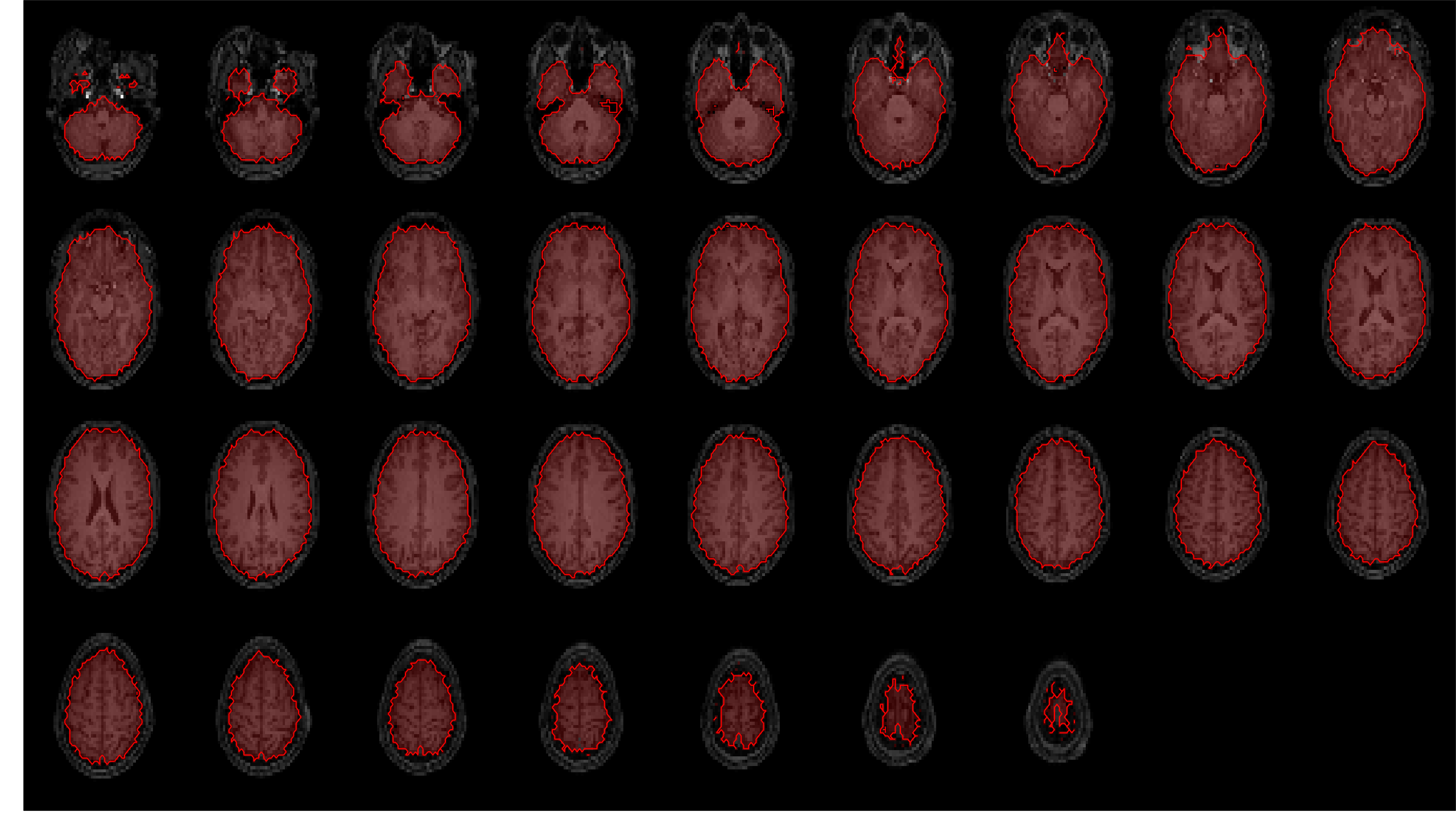
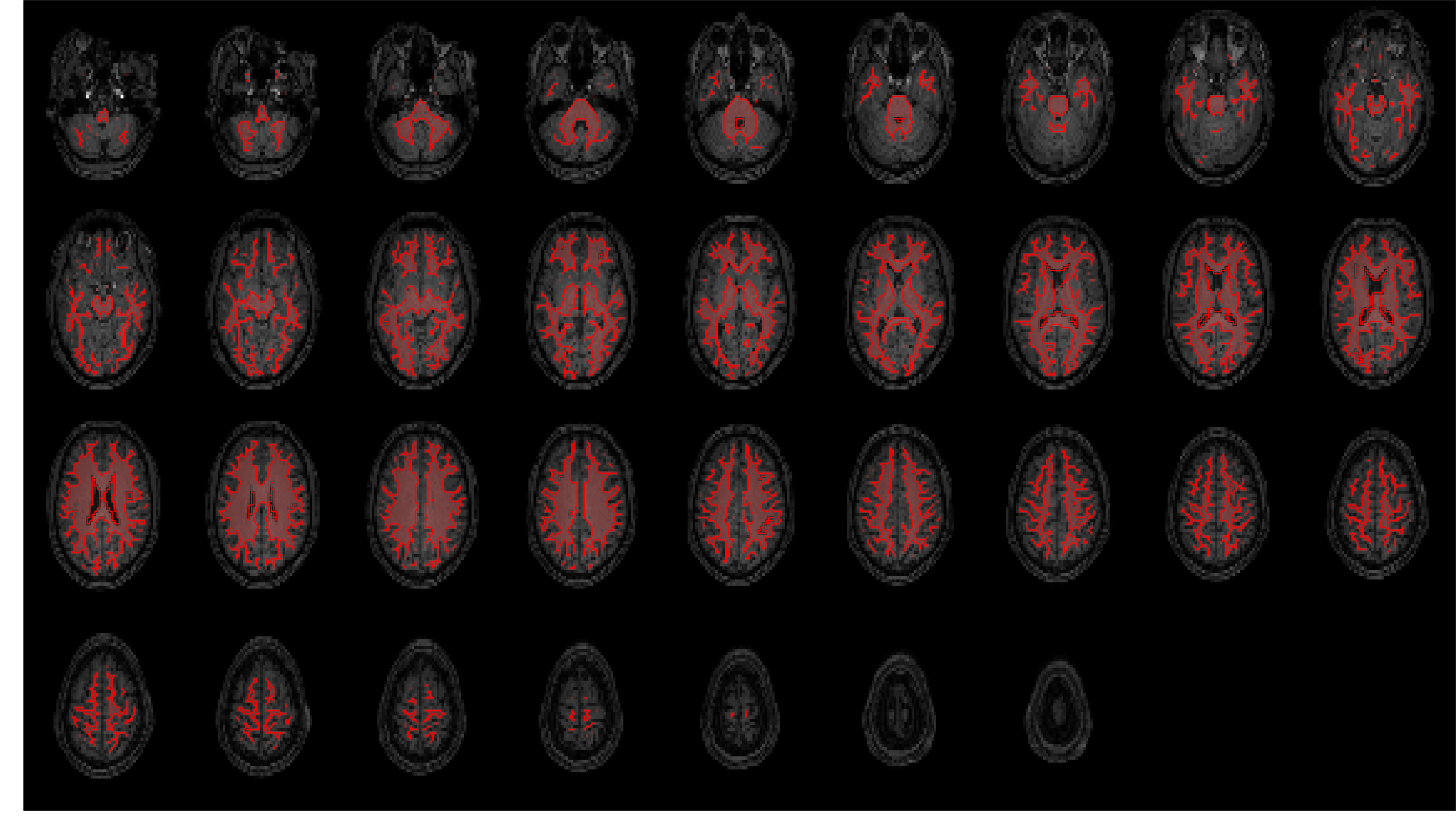
T1-weighted coregistration and segmentation maps (grey matter, white matter, CSF, and whole brain)
Functional QC images:
Time series mean
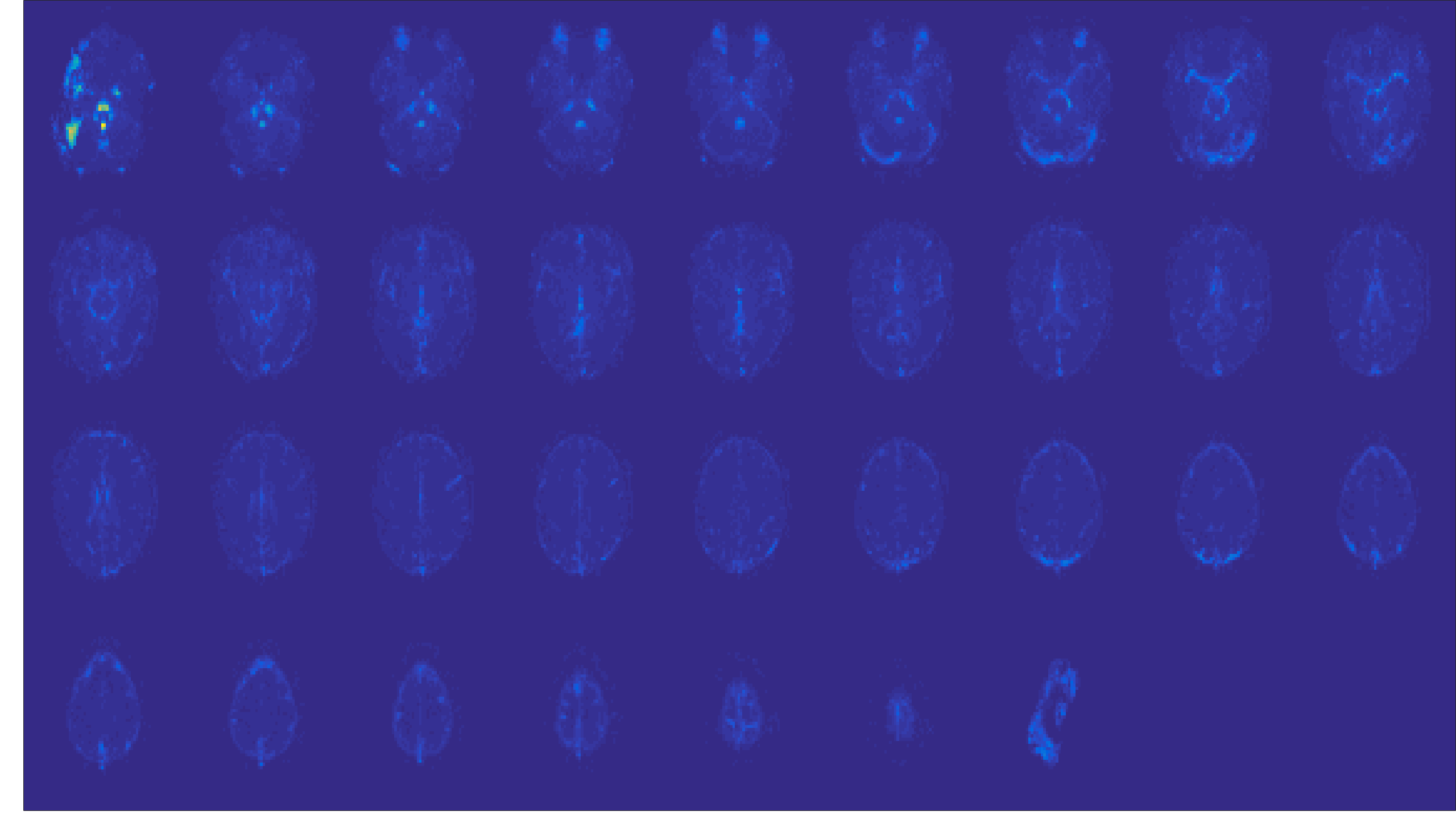
Time series standard deviation
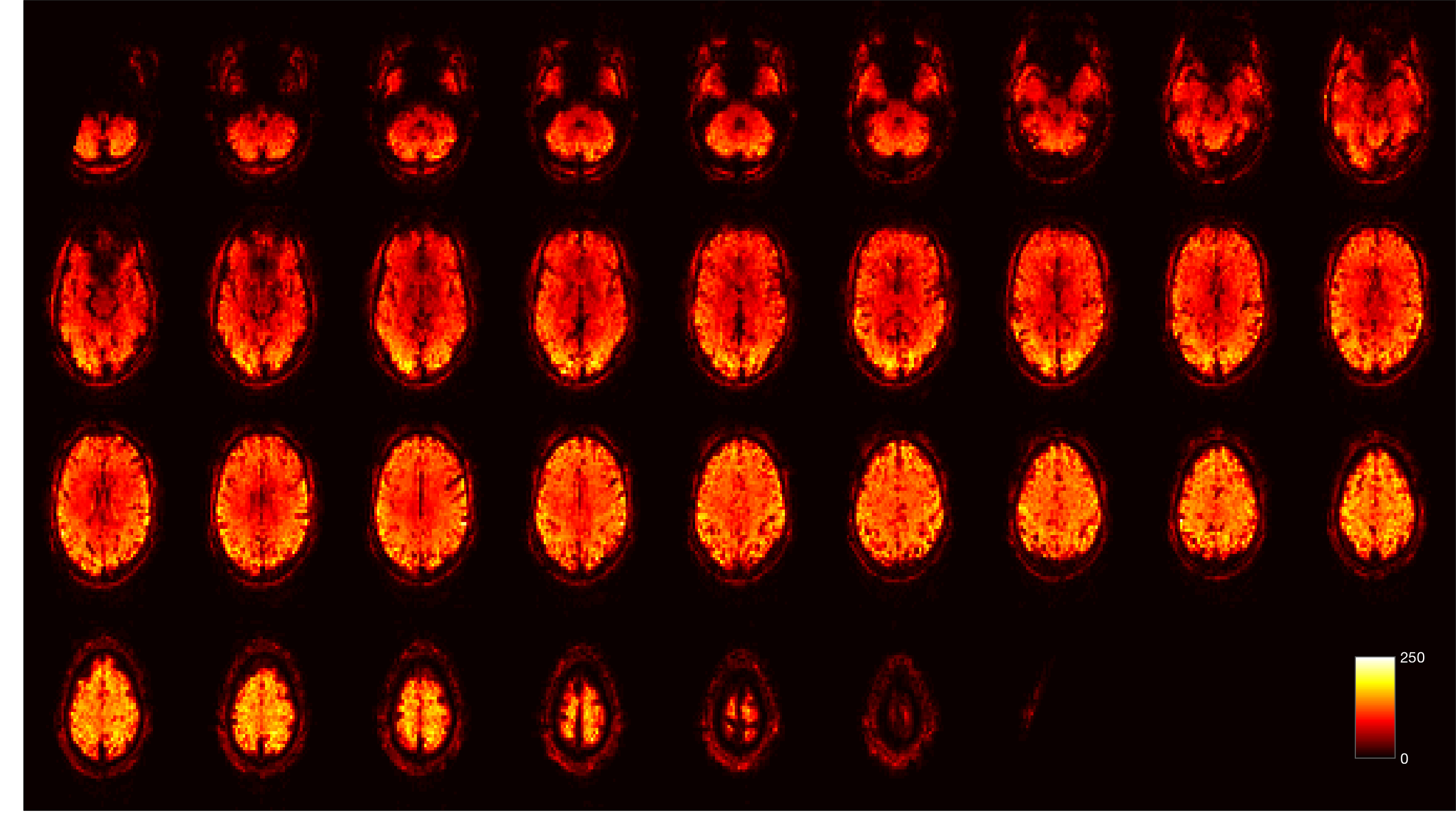
Temporal signal-to-noise ratio
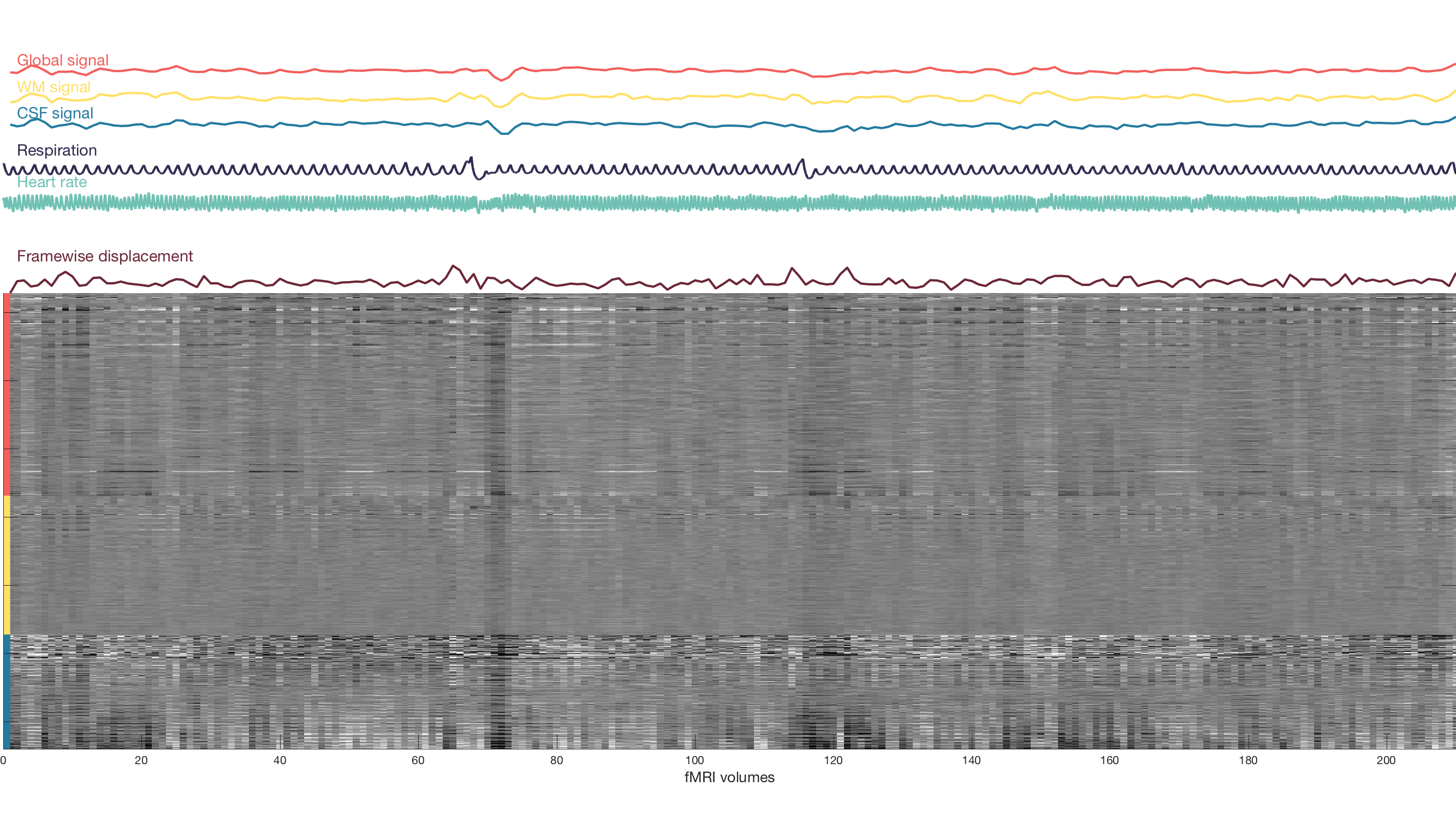
Carpet plots with traces for: framewise displacement, physiology data, tissue signals
Functional QC metrics:
Mean framewise displacement
Total framewise displacement
Framewise displacement outliers
Mean Z-score
Global correlation
Mean tSNR in tissue types (grey matter, white matter, CSF, and whole brain)
Some example images are included below:
Anatomical: brain mask
Anatomical: white matter mask
Functional: tSNR
Functional: standard deviation
Functional: carpet plot
Functional: QC metrics summary table
